Your Phone Is More Capable Than Its Default Setup Suggests
Most people set up a new phone, download their apps, and never revisit the settings again. That's understandable - settings menus are dense, and the defaults are designed to work for most people most of the time. But "most people" isn't the same as you, and a handful of overlooked options can make a genuine difference in how comfortable and efficient your phone feels to use daily.
These aren't obscure developer tricks or risky tweaks. They're legitimate features built into both Android and iOS that tend to get buried under more obvious options. Whether your hands are tired from holding a large screen or you're constantly fighting distractions, there's likely a setting that addresses exactly that. For a broader look at how the two platforms compare in terms of customization, see our Android vs. iOS comparison.
One-Handed Mode
Modern phones have grown significantly in screen size, and reaching the top of the display with one hand isn't always possible without an awkward grip shift. Both major platforms offer a solution. On iOS, Reachability (found under Accessibility > Touch) lets you swipe down on the bottom edge of the screen to pull the top half of the display within thumb range. Android phones - particularly those from Samsung and Google - offer a dedicated One-handed mode in the settings that shrinks the active screen area to one corner.
Enable this and you'll find yourself dropping the phone far less often during one-handed use.
Reachability and one-handed mode reduce the awkward grip shifts that lead to dropped phones.
Scheduled Do Not Disturb
Do Not Disturb (DND) is a well-known feature, but the majority of users only toggle it manually when they remember. The more useful version is the scheduled one. On both iOS and Android, you can set DND to activate automatically at a specific time each night and lift in the morning - without any action on your part.
You can also configure exceptions: calls from starred contacts or repeated calls within a few minutes can still break through, so emergencies aren't silenced. This is particularly valuable for sleep quality, since notification sounds at night are a documented disruptor of rest even if they don't fully wake you.
Scheduled Do Not Disturb protects your sleep automatically, with exceptions for genuine emergencies.
Display Size and Text Scaling
Both iOS and Android separate text size from display size. Text size affects only how large letters render; display size scales the entire interface, including icons and UI elements. Most people leave these at the factory default, which is optimized for marketing screenshots rather than daily comfort.
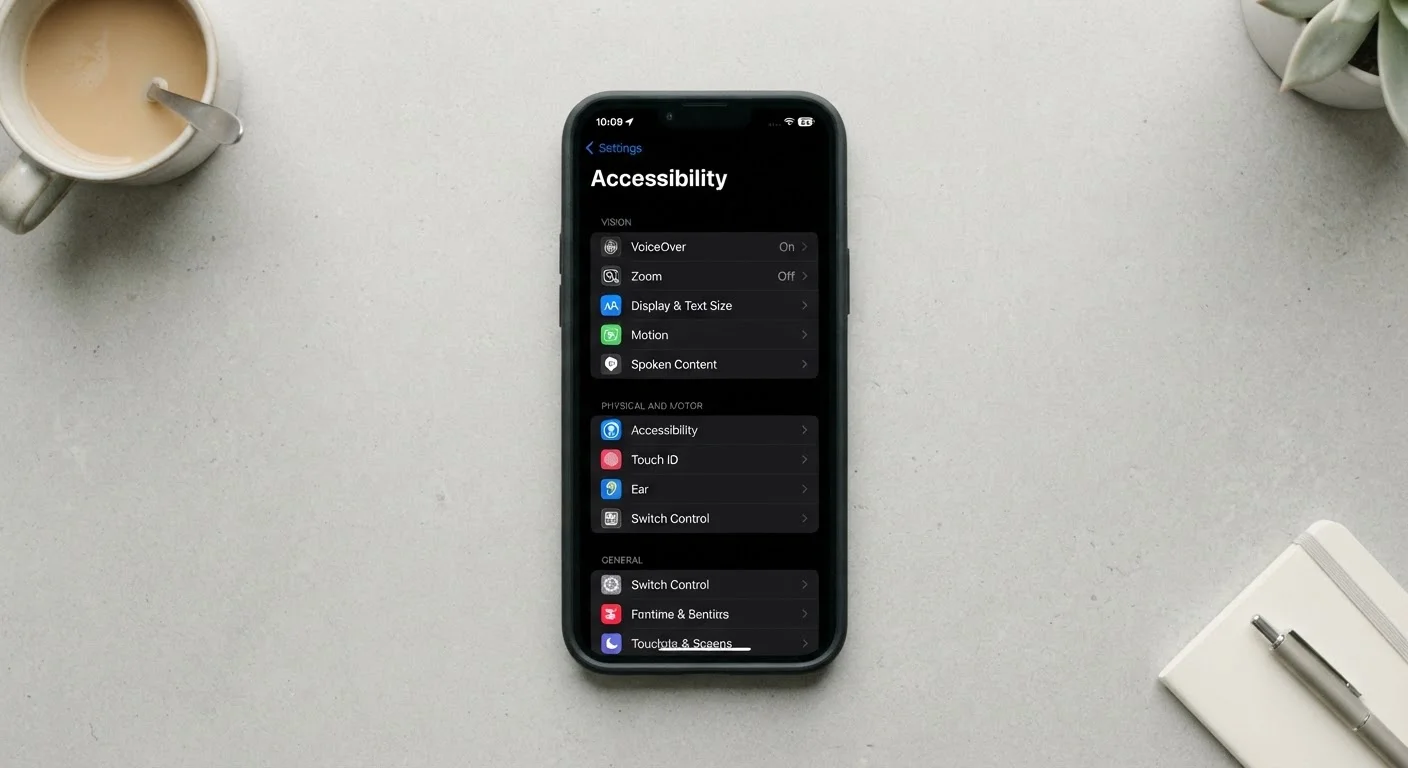
Bumping text size up one or two notches - found under Accessibility > Display & Text Size on iOS, or Display > Font Size on Android - can meaningfully reduce eye strain during extended reading sessions, without making your phone feel like a different device. Try it for a day before deciding it's too large; most people adjust within hours.
Increasing text size by one notch can cut eye strain significantly during long reading sessions.
Back Tap (iOS) and Quick Actions
iPhone users running iOS 14 or later have access to Back Tap, found under Accessibility > Touch > Back Tap. A double or triple tap on the back glass of the phone can trigger a wide range of actions: taking a screenshot, opening the camera, adjusting volume, or even running a Shortcut you've built. It sounds gimmicky but becomes instinctive fast.
Android handles this differently by platform - some devices support squeeze gestures, edge-panel shortcuts, or customizable power-button actions. Exploring your specific model's Advanced Features or Gestures section is worth the five minutes it takes.
Back Tap lets iPhone users trigger common actions with a simple tap on the phone's rear glass.
Adaptive Battery and Screen Timeout
Keeping the screen on longer than you need it is one of the more consistent battery drains throughout the day. Setting your screen timeout to 30 seconds rather than two minutes doesn't feel significant in the moment, but it adds up across dozens of idle periods.
On Android, Adaptive Battery (under Battery settings) uses on-device machine learning to limit background activity for apps you rarely use, prioritizing power for the ones you actually open. iOS achieves similar results through its own background app management. Neither requires any ongoing attention once enabled - they work quietly behind the scenes.
A shorter screen timeout, combined with adaptive battery, quietly extends usable charge through the day.
Notification Management Per App
Most phones let you go beyond a simple on/off switch for notifications. Both iOS and Android allow you to set notification delivery per app to time-sensitive only, silence visual alerts while preserving badge counts, or group notifications so they arrive as a single summary rather than a stream of interruptions.
Spend ten minutes in Settings > Notifications reviewing which apps actually warrant immediate attention. Most don't. Giving shopping, social media, and news apps a "Scheduled Summary" delivery (available in iOS Focus settings) means you check them on your terms rather than being pulled away constantly. This is a meaningful quality-of-life change that doesn't require limiting what apps you use.
Per-app notification controls let you reduce interruptions without deleting or limiting the apps you use.
Small Changes, Real Difference
None of these settings require technical expertise, and none of them will void your warranty or destabilize your phone. They're purpose-built features that simply don't get enough attention during the out-of-box experience. The payoff - less thumb strain, fewer interruptions, longer battery life, better readability - compounds over the months and years you use the same device.
If you've been wondering whether your phone is slowing down or becoming harder to use, the answer is often in the settings menu rather than the hardware. For more on separating performance perception from reality, our piece on common smartphone performance myths is worth a read. And once you're comfortable with your phone's settings, applying the same systematic approach to your computer's keyboard shortcuts can save even more time - see our guide to keyboard shortcuts for a starting point.
Start With One Setting at a Time
It's tempting to enable everything at once, but changing too many settings simultaneously makes it hard to know what's actually helping. Pick one setting from this list - ideally the one that addresses your biggest daily frustration - and live with it for a few days before moving to the next. This approach also makes it easy to reverse a change if it doesn't suit you.