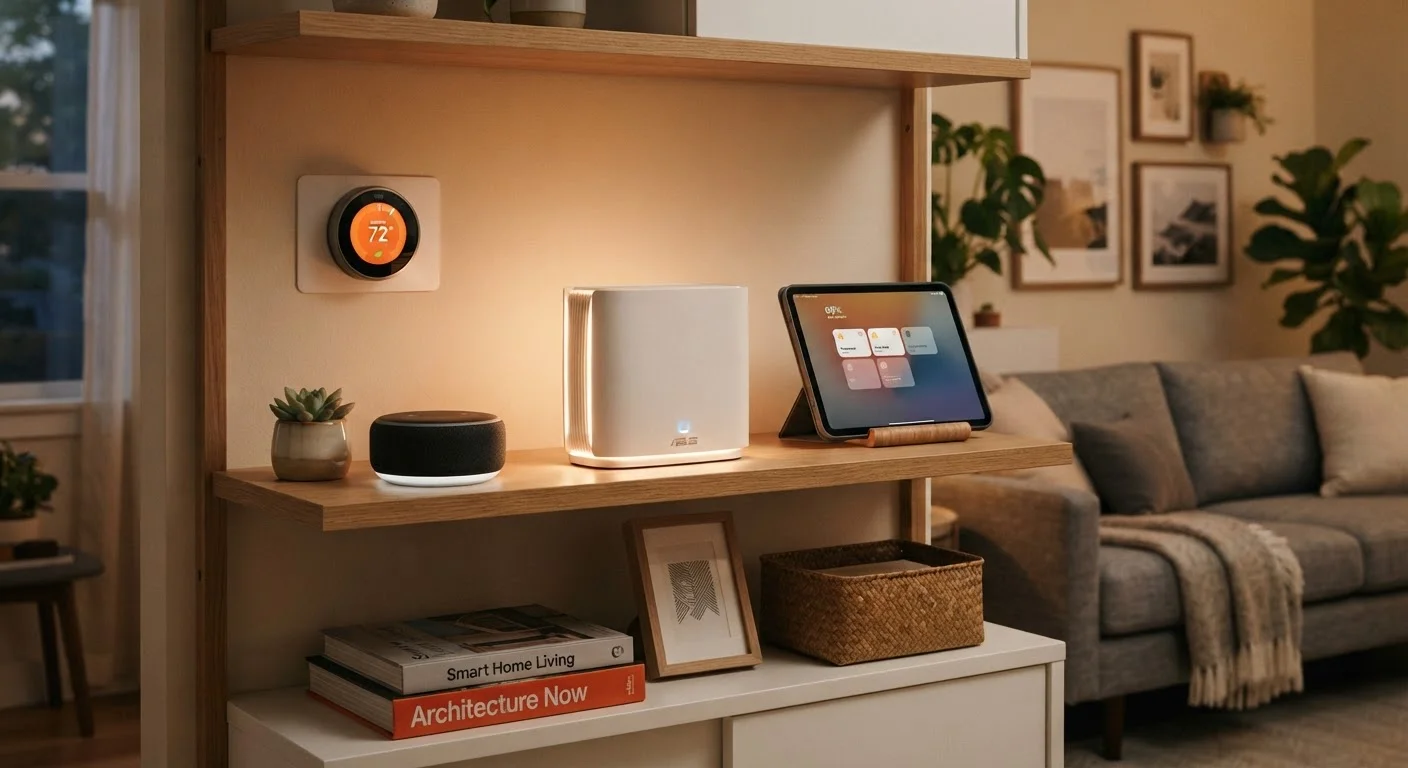
What Your Home Network Actually Is
Your home network is the system that connects every device in your house to the internet and, often, to each other. Think of it as the plumbing behind the walls: you rarely see it, but everything depends on it working correctly. When a smart thermostat adjusts based on your schedule or a security camera sends footage to your phone, the home network is what makes that possible.
At its simplest, your network begins at the point where internet service enters your home - typically through a cable, fiber, or DSL connection - and branches out to reach every room, screen, and gadget. Understanding what each part does helps you make better decisions and troubleshoot problems faster. For a broader look at what connected home technology actually delivers, see what "smart home" actually means.
IP address
A unique number assigned to each device on your network so that data is routed to the right place. Your router assigns these automatically using a system called DHCP.
Bandwidth
The maximum amount of data that can travel through your internet connection at one time. More devices using the network simultaneously means each device gets a smaller share.
SSID
The name of a Wi-Fi network as it appears when you search for available connections on a device. Your router broadcasts one or more SSIDs - you choose which one to join.
Mesh network
A system of multiple Wi-Fi nodes placed around your home that work together as a single network, eliminating dead zones more effectively than a single router.
IoT (Internet of Things)
A term for everyday physical devices - thermostats, light bulbs, locks - that connect to the internet to send and receive data.
Guest network
A separate Wi-Fi network created by your router that keeps visitors or smart devices isolated from your main network, limiting what they can access.
Key Network Components You Should Know
A home network is made up of a few core pieces, and knowing what each one does removes a lot of confusion.
- Modem: This device translates the signal from your internet service provider (ISP) into data your home equipment can use. Without it, nothing reaches the internet.
- Router: The router takes that internet connection and distributes it - either wirelessly (Wi-Fi) or through physical ethernet cables - to all the devices in your home. It also assigns each device a local address so data reaches the right destination.
- Access point or Wi-Fi extender: These expand wireless coverage in areas where the router's signal is weak. A mesh network system replaces or supplements a single router with multiple nodes that work together seamlessly.
- Switch: An ethernet switch allows multiple wired devices to share a single connection port on your router - useful in a home office or entertainment center with several devices.
Many households use a single device that combines the modem and router functions, often provided by the ISP. This works fine for smaller homes but may limit flexibility as you add more devices.
Bandwidth, Speed, and Why They Matter for Smart Devices
Internet speed is measured in megabits per second (Mbps) and describes how quickly data can travel between your home and the outside internet. Bandwidth is the total capacity of that pipe - and every active device on your network takes a share of it.
Most smart home devices - sensors, plugs, locks - use very little bandwidth on their own. But the total number of connected devices adds up, and video-heavy devices like security cameras or streaming players consume significantly more. If your internet plan is underpowered relative to your household's habits and device count, you'll notice buffering, lag, or smart devices failing to respond.
Run a Speed Test at the Router First
Before blaming smart devices for a slow network, test your internet speed directly from a laptop connected to the router via ethernet cable. This tells you whether the issue is your internet plan, your Wi-Fi signal, or device congestion - and saves you from chasing the wrong problem.
Wi-Fi signals also come in two main frequencies: 2.4 GHz and 5 GHz. The 2.4 GHz band travels farther and passes through walls more easily, making it the right choice for most smart home devices. The 5 GHz band is faster over shorter distances, better suited for laptops and streaming devices. For a deeper look at how these signals behave, our Wi-Fi guide covers signals, speeds, and dropped connections in plain language.
Network Segmentation: Keeping Devices Organized and Safer
Network segmentation means dividing your home network into separate zones so devices cannot freely communicate with one another. The most practical version of this for most households is creating a guest network or dedicated IoT network for smart devices, separate from the main network used by phones, computers, and tablets.
Why does this matter? Smart home devices vary widely in how frequently their software is updated and how rigorously they are built to withstand security threats. Placing them on a separate network limits what a compromised device can access. If a poorly secured smart plug were exploited, it would be isolated from the computer where you do your banking.
Most modern routers include a guest network feature in their settings - typically accessible through a browser-based admin page or a companion app. Setting one up usually takes fewer than ten minutes. For practical habits that go further, these home device security habits are worth reviewing.
Common Network Problems and How to Approach Them
Most home network frustrations fall into a predictable set of categories. Identifying which category you're dealing with gets you to a solution much faster.
- Weak or inconsistent Wi-Fi signal
- Distance, walls, and physical obstructions reduce signal strength. Try repositioning your router to a central, elevated location. If coverage gaps persist, a mesh network or a well-placed access point resolves most range issues.
- Slow speeds despite a fast internet plan
- Check how many devices are active simultaneously. An older router may also struggle to handle many concurrent connections. Restarting the router can temporarily clear performance bottlenecks.
- A device won't connect or keeps dropping
- Confirm the device supports your network's Wi-Fi band (2.4 GHz vs. 5 GHz). Check that you're entering the correct password, and make sure the device is within reasonable range. Some smart devices require you to connect to a temporary network during setup before switching to your home network - follow the manufacturer's setup steps carefully.
- Everything slows down at certain times
- This is often a congestion issue either within your home or at the ISP level during peak hours. Scheduling large updates and backups for overnight can help. Upgrading to a higher-speed internet plan may be warranted if the problem is persistent.
When you're ready to put this knowledge to practical use, a room-by-room smart home planning walkthrough can help you think through which devices to add and in what order. And for an ongoing reliability checklist, things worth checking before your smart home devices stop working is a useful reference.