How Wi-Fi Actually Works
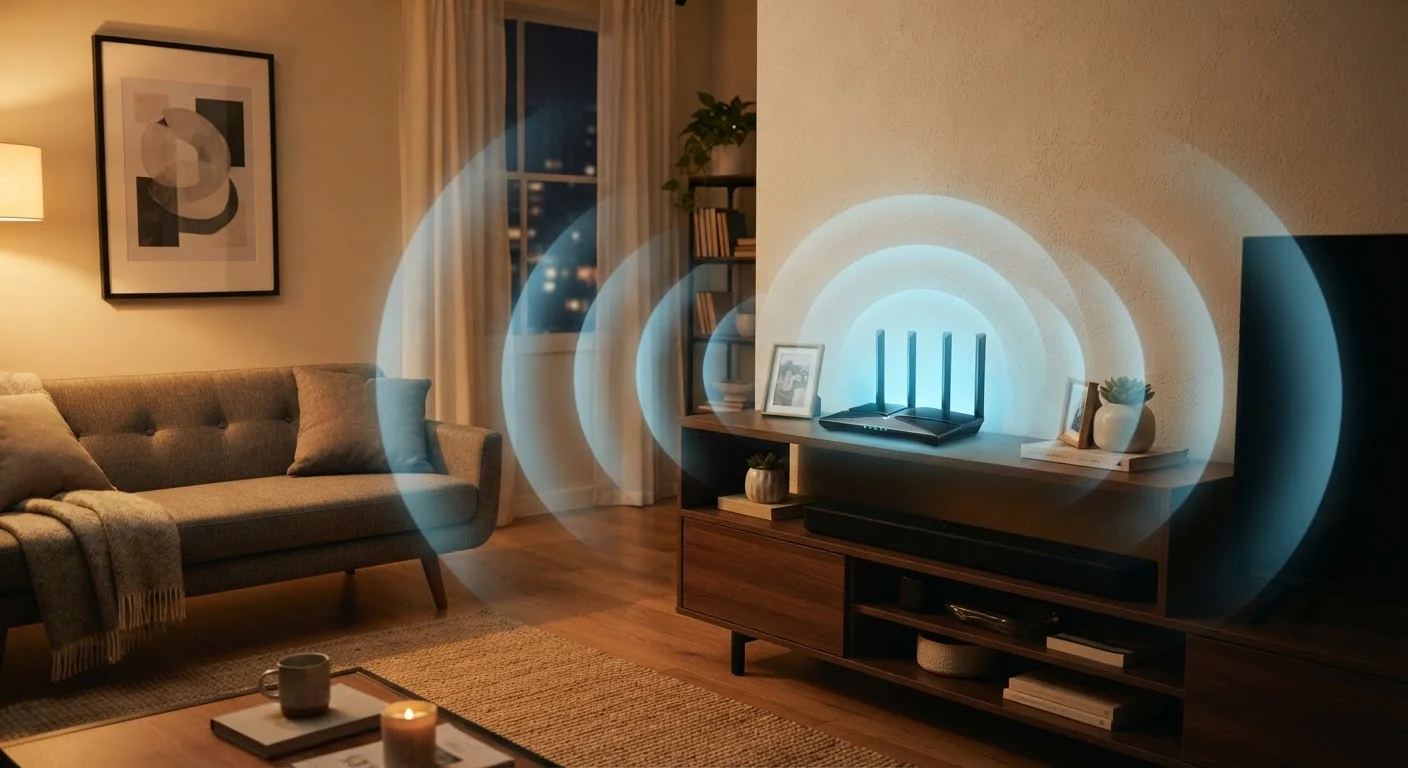
Wi-Fi is a technology that allows devices to exchange data wirelessly using radio waves - the same basic physics behind AM/FM radio, just at much higher frequencies. Your router acts as a two-way radio station: it receives data from the internet through your modem and broadcasts it wirelessly to your phone, laptop, or smart TV, while simultaneously receiving data back from those devices.
Every Wi-Fi connection is a conversation. Your device sends a request - say, to load a webpage - and the router replies with the data, broken into small packets. Those packets travel back and forth dozens of times per second. When that conversation gets interrupted by interference or distance, the connection feels slow or drops entirely.
For a broader look at how all the pieces of your home network fit together, see our home network fundamentals guide.
Wi-Fi Standards and What the Numbers Mean
Wi-Fi has gone through several generations, each improving speed and reliability. The Wi-Fi Alliance (the industry body that certifies equipment) now uses simplified names:
- Wi-Fi 4 (802.11n) - common in older devices, supports dual-band
- Wi-Fi 5 (802.11ac) - significantly faster, widely used in most current homes
- Wi-Fi 6 (802.11ax) - improved efficiency, better in crowded environments like apartments
- Wi-Fi 6E - adds a 6 GHz band for even less congestion
- Wi-Fi 7 (802.11be) - emerging standard; only relevant if your devices also support it
The advertised speed on a router box (e.g., "AC3000") refers to the theoretical maximum across all bands combined - not what any single device will experience. Real-world speeds are always lower due to distance, interference, and the number of connected devices.
~15 ft
Range reduction through each interior wall
The Wi-Fi Alliance estimates that a single standard drywall partition can reduce effective 5 GHz range by roughly 15 feet.
2.4 GHz
Frequency shared by microwaves and many routers
Consumer microwave ovens operate at 2.45 GHz, directly overlapping the most common Wi-Fi band and causing measurable interference when in use.
Wi-Fi 6
Standard built to handle dense device environments
Wi-Fi 6 introduced OFDMA technology specifically to improve performance in homes with many simultaneously connected devices.
The 2.4 GHz vs. 5 GHz Frequency Debate
Modern routers broadcast on two or more frequency bands. Choosing the right one for each situation makes a noticeable difference.
2.4 GHz travels farther and passes more easily through walls and floors. It's the better choice for devices far from the router - a smart thermostat in a hallway or a laptop in the basement. The trade-off: it's a crowded frequency. Microwaves, baby monitors, Bluetooth devices, and your neighbors' routers all compete on it.
5 GHz carries data faster but loses strength more quickly over distance and through obstacles. If your device is in the same room or the next room from the router, connect it to the 5 GHz band for noticeably better performance.
Wi-Fi 6E and Wi-Fi 7 routers add a 6 GHz band, which is currently far less congested - a real advantage in dense urban environments such as apartment buildings.
If you're curious how Wi-Fi compares to other home wireless protocols like Zigbee or Z-Wave, our wireless protocols explainer breaks down the differences.
Why Wi-Fi Connections Drop
Dropped connections are frustrating, but they almost always have an identifiable cause. The most common culprits:
- Distance and physical barriers: Every wall, floor, appliance, and large furniture piece absorbs or reflects radio waves. Concrete and brick are especially disruptive.
- Channel congestion: If your neighbors' routers use the same channel as yours, they interfere with each other - particularly on the 2.4 GHz band.
- Too many devices: Each connected device takes a slice of available bandwidth. Routers have a practical limit on simultaneous connections before performance degrades.
- Router overheating: Routers have processors and memory. When they run hot or aren't restarted periodically, performance suffers. A simple monthly restart can clear accumulated errors.
- ISP-side issues: Sometimes the problem isn't your Wi-Fi at all - it's the connection from your internet service provider to your modem.
Don't Overlook Your Modem's Age
Many ISPs rent modems to customers, but these devices don't get replaced often. A modem more than five years old may no longer support the speeds in your current internet plan. If your wired speed tests consistently fall well below what your ISP promises, ask your provider whether your modem is compatible with your current service tier.
How to Diagnose Your Wi-Fi Problems
Before buying any new equipment, run through these steps to identify where the problem actually lies:
- Test your wired speed first. Plug a laptop directly into your modem with an Ethernet cable and run a speed test (search "internet speed test" in any browser). If wired speeds match what your ISP promises, your network is likely fine and the issue is Wi-Fi specific. If wired speeds are also slow, call your ISP.
- Check signal strength on the device. Most devices show Wi-Fi signal as bars. Move closer to the router and see if the problem resolves - that localizes it to range or interference.
- Restart the router and modem. Unplug both for 30 seconds, plug the modem in first, wait 60 seconds, then plug in the router. This clears many temporary issues.
- Check how many devices are connected. Log into your router's admin page (the address is usually printed on the router label) and look at the device list. Unexpected devices could indicate an unauthorized user or a misconfigured gadget consuming bandwidth.
- Look for interference sources. Microwaves, cordless phones, and even some LED lighting can cause 2.4 GHz interference. Try switching your device to 5 GHz if both bands are available.
When diagnosing an intermittent drop, note the time it happens - drops that occur at the same time daily often point to a scheduled ISP maintenance window or a device that auto-syncs and saturates the connection.
Pattern recognition narrows the cause far faster than random troubleshooting and avoids unnecessary hardware replacement.
If your router has separate 2.4 GHz and 5 GHz network names, keep them named differently so you can deliberately choose which band each device connects to rather than leaving it up to automatic selection.
Devices don't always pick the most appropriate band automatically; manual assignment ensures your bandwidth-hungry devices stay on the faster 5 GHz channel when in range.
Practical Ways to Improve Your Signal
Once you understand the problem, these approaches address the most common situations:
- Reposition your router. Place it in a central, elevated location - not tucked behind a TV or inside a cabinet. Router antennas broadcast signal outward and downward from the unit's position.
- Change the wireless channel. In your router's admin settings, switch from "auto" channel selection to a less congested channel. On 2.4 GHz, channels 1, 6, and 11 do not overlap; one of those is often less crowded. Free apps like WiFi Analyzer (available on Android) can show you which channels nearby networks use.
- Update your router's firmware. Router manufacturers release firmware updates that fix bugs, patch security vulnerabilities, and sometimes improve performance. Check your router's admin interface or the manufacturer's support page periodically.
- Consider a mesh network system. For homes over about 1,500 square feet, or those with multiple floors, a mesh system uses multiple nodes to blanket the space in consistent coverage - eliminating the dead zones a single router creates.
- Use Ethernet for demanding tasks. Streaming 4K video, gaming, or video conferencing on a desktop? A wired Ethernet connection is always more stable and faster than Wi-Fi for a device that doesn't need to move.
Understanding how Wi-Fi fits into your broader digital environment can also help - just as a slow computer has identifiable causes, so does a slow network.