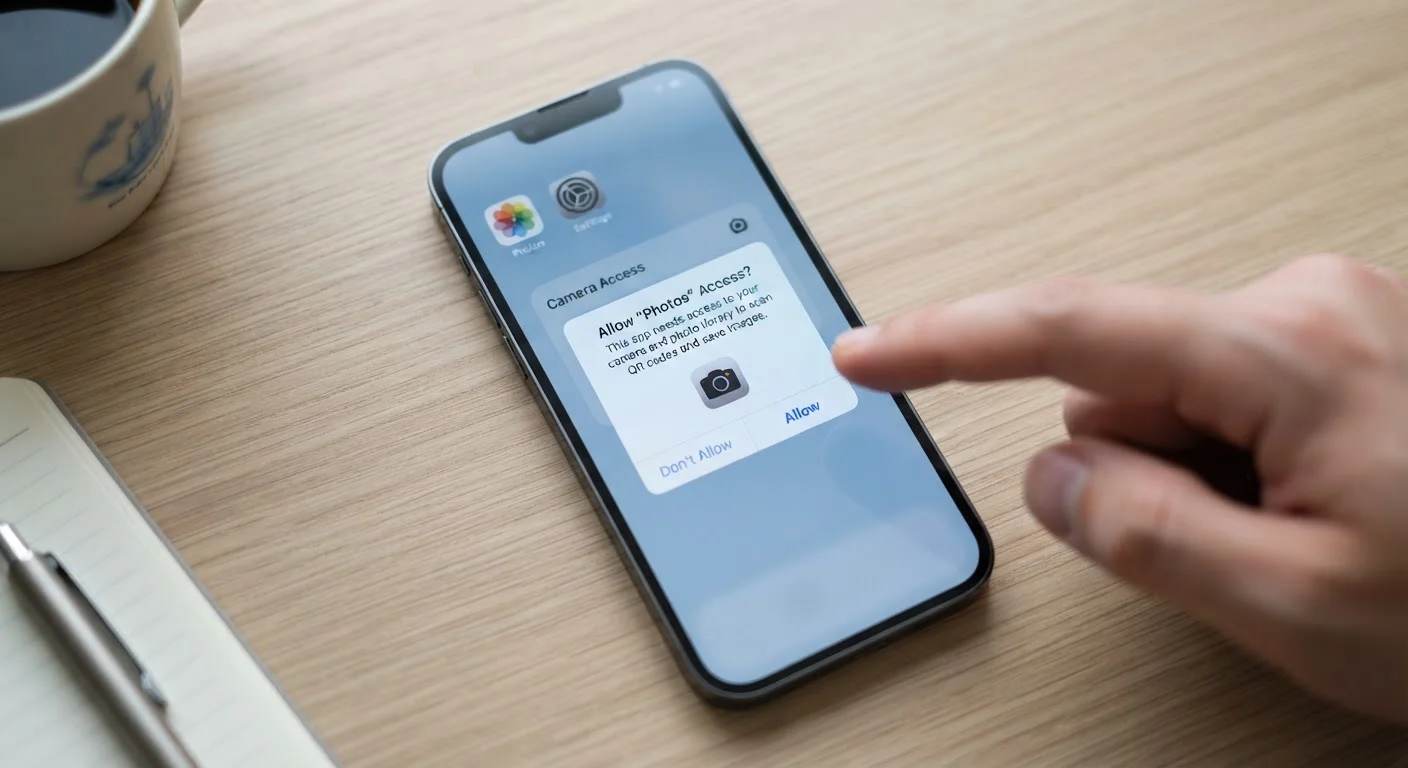
Why Permissions Exist - and Why They Matter
Your smartphone is essentially a pocket-sized sensor array: it has a camera, microphone, GPS radio, contact database, and much more. App permissions are the gatekeeping system that prevents any app - whether it's a trusted messaging platform or a sketchy free game - from silently tapping into all of that without your knowledge.
The permission model was designed to give users informed control. In practice, though, most people tap Allow quickly because the dialog interrupts what they're trying to do. That split-second decision can have real privacy consequences, which is why it's worth spending a few minutes understanding what each category of permission actually does.
For a broader look at how your smartphone security posture fits together, see our guide on keeping your smartphone secure without becoming a security expert.
45%
Apps requesting location access unnecessarily
A study by the International Computer Science Institute found that a significant share of Android apps requested location data without a clear functional need for it.
2 in 3
Users who tap 'Allow' without reading the prompt
Research from various UX and privacy studies consistently finds the majority of users dismiss permission dialogs without considering the implications.
0
Features lost by revoking unused app permissions
In most cases, revoking a permission from an app you rarely use has no practical impact - the feature requiring that permission simply becomes unavailable until re-granted.
The Most Common Permissions - Plain and Simple
Here's what the permissions you'll encounter most often actually mean:
- Location: Lets the app know where you physically are, using GPS, Wi-Fi signals, or cell towers. Most apps offer three levels: always, only while in use, or never. Choosing only while using is a reasonable default for most location-aware apps.
- Camera: Allows the app to activate your camera and capture photos or video. A photo-editing app clearly needs this. A note-taking app asking for camera access should at least prompt a question about why.
- Microphone: Enables audio recording. Necessary for voice calls, video conferencing, and voice-to-text. If an app has none of those features, microphone access is a red flag.
- Contacts: Grants access to your entire address book - names, phone numbers, emails, and sometimes notes. Messaging apps often request this to find which of your contacts use the same service. Be aware that this can expose other people's information, not just your own.
- Photos / Media: Lets the app read or write to your photo library. On iOS you can now grant access to specific photos rather than the entire library - a worthwhile restriction when possible.
- Notifications: Allows the app to send you alerts. While this isn't a data-access permission in the traditional sense, over-permitting notifications creates its own problems with distraction and app engagement manipulation.
- Bluetooth: Used for connecting peripherals, but newer apps may request it to detect nearby devices for location purposes even when GPS is off.
Use 'Ask Every Time' for Sensitive Permissions
Both Android and iOS offer an 'Ask Every Time' option for some permissions, including camera and microphone on iOS. Selecting this means the app must request your approval each session rather than having permanent access. It adds one tap of friction but keeps you aware of when sensitive hardware is being accessed.
How to Judge Whether a Permission Is Reasonable
The core question to ask is: Does this feature require this permission to work? A flashlight app has no legitimate reason to access your contacts or microphone. A recipe app has no need for your location. When a permission doesn't connect logically to what the app actually does, that's worth pausing over.
Context matters too. A free game requesting access to your microphone might be doing so to serve targeted ads based on audio cues - a practice that, while not always illegal, is invasive. Compare that against a video chat app requesting microphone access, which is straightforwardly necessary.
A navigation app requests access to your location 'always' - even when you're not using it.
A free puzzle game requests access to your contacts and microphone during installation.
A travel booking app requests 'always on' location access when you open it for the first time.
A photo-sharing app asks to access your entire photo library rather than letting you choose specific images.
Apps that collect more data than they need are also a concern when it comes to always-on connected devices in your home. Our article on the privacy trade-offs of always-on home devices covers a related set of considerations worth reading alongside this one.
Reviewing and Revoking Permissions You've Already Granted
Most people have granted dozens of permissions over the life of their phone without a second thought. The good news is that none of those grants are permanent - you can review and revoke them at any time.
On iPhone (iOS): Go to Settings → scroll to the app name, or go to Settings → Privacy & Security to view all apps with access to a specific resource (e.g., all apps using your microphone).
On Android: Go to Settings → Apps → select the app → Permissions. You can also go to Settings → Privacy → Permission Manager for a resource-by-resource view.
A useful habit is to do a quick permissions audit every few months - especially for apps you rarely open. If you haven't used an app in six months, there's little reason for it to retain access to your camera or location. Both platforms also offer automatic permission revocation for unused apps, though it's worth enabling this feature manually if it isn't on by default.
Browser extensions present a parallel set of concerns on the desktop side. Our piece on browser extensions and privacy risks explains how to apply similar scrutiny there.