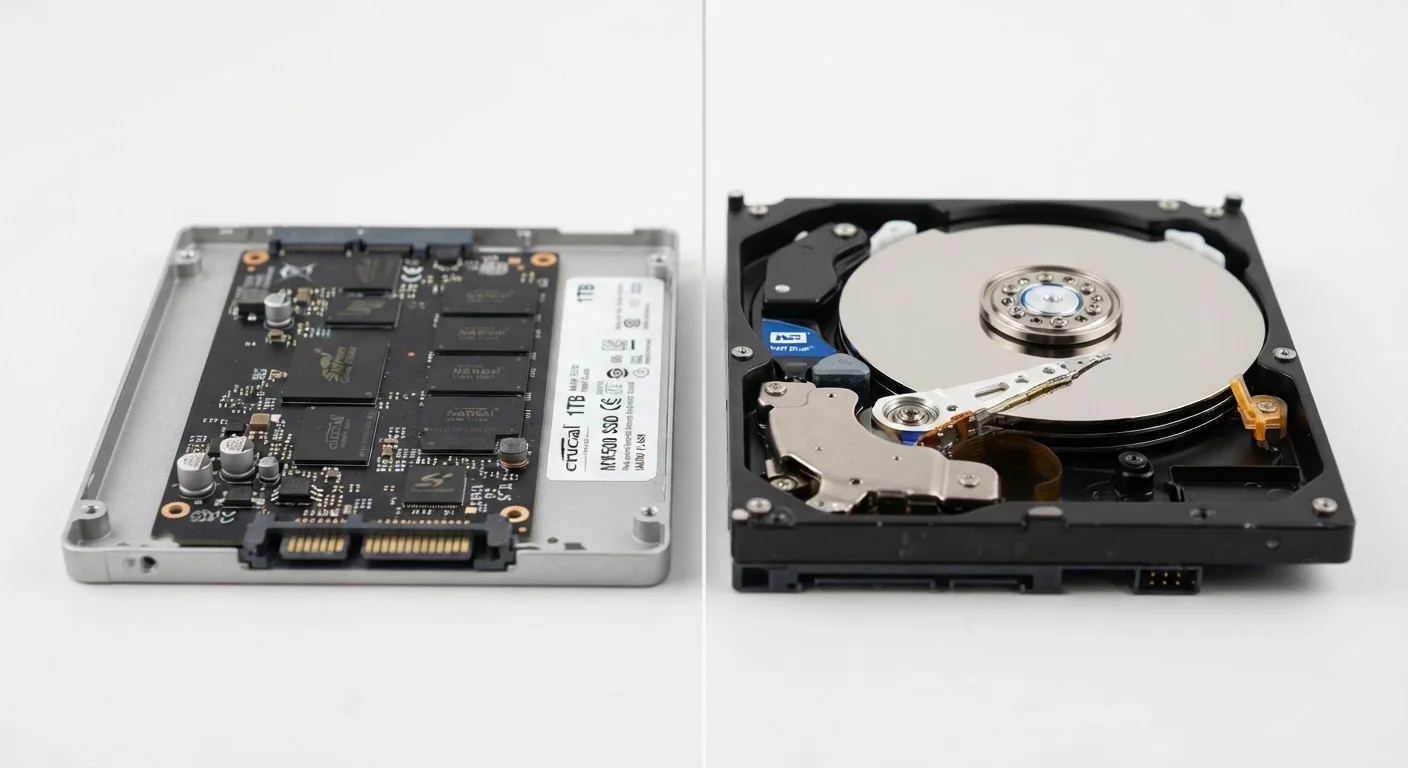
How Each Drive Actually Stores Your Data
Every file on your computer - photos, documents, apps, the operating system itself - has to live somewhere physically. The two main technologies that handle this job work in fundamentally different ways, and those differences ripple through everything you experience when you use a computer.
A hard disk drive (HDD) stores data on one or more rigid magnetic platters that spin at high speed, typically 5,400 or 7,200 revolutions per minute. A mechanical arm moves across the surface of those platters to read and write data, much like a record player needle tracking a vinyl record. Because the arm must physically move to the right location before a read or write can happen, there's an unavoidable delay called seek time.
A solid-state drive (SSD) has no moving parts at all. It stores data in interconnected flash memory chips - the same general technology used in USB flash drives and smartphone storage. Because the drive accesses any location electrically rather than mechanically, it can retrieve data almost instantly regardless of where it's stored on the chip.
That mechanical-versus-electronic distinction is the root cause of nearly every practical difference between the two.
| Criterion | SSD | HDD |
|---|---|---|
| How data is stored | Flash memory chips (no moving parts) | Spinning magnetic platters |
| Typical read speed | 500-3,500+ MB/s | 80-160 MB/s |
| Boot time (approximate) | Under 15 seconds | 45-90+ seconds |
| Cost per gigabyte | Higher | Lower |
| Common max consumer capacity | 4-8 TB (consumer) | 8-20 TB (consumer) |
| Shock/vibration resistance | High (no mechanical parts) | Lower (moving components) |
| Power consumption | Lower | Higher |
| Noise | Silent | Audible spinning/clicking |
Speed: Where the Difference Hits Hardest
For most users, speed is the most immediately noticeable difference. When your computer starts up, it loads the operating system from your drive. When you open an app, it reads program files from storage. When you save a large file, the drive must write that data quickly enough to keep pace.
SSDs handle all of these tasks substantially faster than HDDs. A typical HDD might deliver sequential read speeds in the range of 80-160 megabytes per second. A mainstream SATA SSD commonly reaches 500-550 MB/s, and newer NVMe SSDs - which connect through a faster interface - can exceed 3,000 MB/s. In practical terms, a computer with an SSD often boots in under 15 seconds; the same machine with an HDD might take a minute or more.
3-5x
Faster boot times with SSDs vs. HDDs
Benchmarks from independent hardware testing labs consistently show SSD-equipped machines booting several times faster than HDD-based counterparts under comparable conditions.
~6x
Speed difference: SATA SSD vs. typical HDD
A mainstream SATA SSD commonly delivers sequential read speeds around 500 MB/s compared to 80-160 MB/s for a standard 5,400 RPM hard disk drive.
NVMe
Faster SSD interface standard
NVMe (Non-Volatile Memory Express) SSDs connect via PCIe rather than SATA and can exceed 3,000 MB/s - used in most modern laptops and desktops as primary drives.
That speed gap also shapes how your computer behaves under load. If you have many browser tabs open, run multiple applications at once, or work with large files, the drive is frequently being accessed. This is one reason a slow drive can contribute to an overall sluggish-feeling PC - the processor is fast, but it's waiting on storage.
Capacity, Cost, and Durability
SSDs cost more per gigabyte than HDDs, though the gap has narrowed considerably in recent years. Consumer HDDs commonly offer 1-8 TB of storage at relatively low prices, which makes them popular for storing large media libraries or serving as backup drives. If you're weighing where to keep your files long-term, external drives and cloud storage each have distinct trade-offs worth understanding.
On the durability front, the lack of moving parts gives SSDs a meaningful advantage in portable devices. Drop a laptop with an HDD while it's spinning and the read/write arm can physically scratch the platters, causing data loss. An SSD has no such vulnerability. Both drive types can fail over time - SSDs have a finite number of write cycles per memory cell, while HDDs are susceptible to mechanical wear - but for typical everyday computing, either can last many years with normal use.
Power consumption is another practical consideration. SSDs generally draw less power, which can translate to modestly longer battery life in laptops. HDDs require more electricity to spin their platters and move the mechanical arm.
If you're deciding between upgrading an existing machine or evaluating a new one, the drive type is one of the highest-impact factors to examine. A computer with an older processor but an SSD will often feel more responsive than a newer processor paired with a slow HDD - because storage access happens constantly, while pure processing power is only taxed in specific situations.