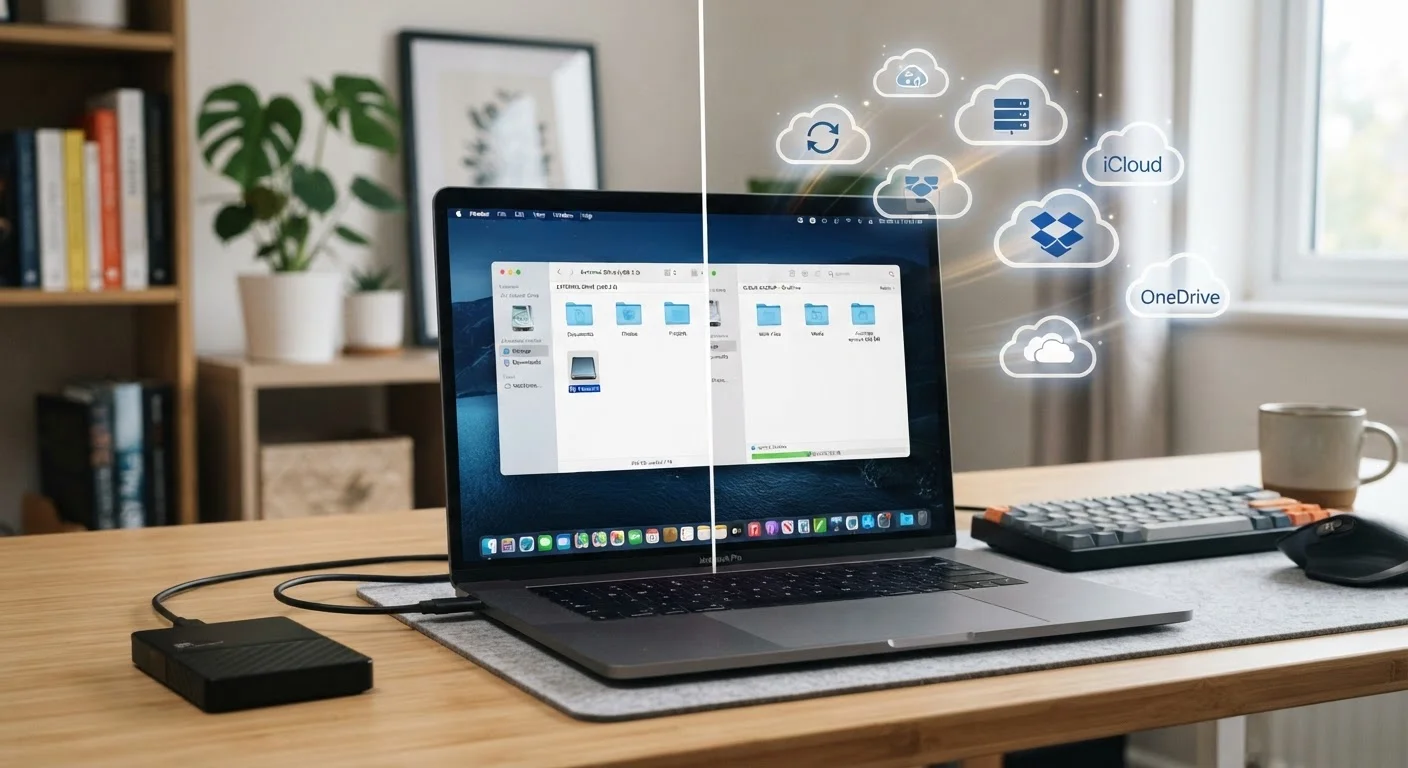
How Each Option Actually Works
Cloud storage sends your files over the internet to remote servers maintained by a third-party provider. Once uploaded, those files live off your device, and you retrieve them through an app or browser whenever you need them. Common examples include services that sync a designated folder automatically whenever your computer is online.
An external hard drive is a physical device - usually connected via USB - that stores data locally, on magnetic platters or flash chips sitting right on your desk. Nothing goes over the internet. You drag files onto it, unplug it, and those files go with it. To understand how the storage hardware inside these drives differs, see our guide to SSDs vs. HDDs.
The core difference comes down to where your data lives and what it takes to get it back.
Key Differences at a Glance
The table below summarizes how cloud storage and external hard drives compare across the criteria most readers care about.
| Cloud Storage | External Hard Drive | |
|---|---|---|
| Access without internet | No - requires connectivity | Yes - fully offline |
| Upfront cost | Low or free to start | Moderate one-time purchase |
| Ongoing cost | Monthly or annual subscription | None after purchase |
| Capacity flexibility | Scales easily by upgrading plan | Fixed; buy a larger drive to expand |
| Risk of data loss | Provider outage or account lapse | Physical damage, loss, or drive failure |
| Transfer speed (large files) | Limited by internet speed | Fast via USB connection |
| Automatic syncing | Yes, in the background | Manual copying required |
| Privacy control | Shared with third-party servers | Entirely under your control |
One detail worth highlighting: external drives provide a fixed amount of storage for a one-time cost, while cloud plans typically charge monthly or annually for a set capacity tier. If your storage needs grow, cloud plans scale more easily - but those recurring costs add up over years.
Where Cloud Storage Has the Edge
The strongest argument for cloud storage is automatic, location-independent access. Files sync silently in the background, so if your laptop is stolen or a drive fails, your documents are unaffected. You can open that presentation from a work computer, a tablet, or a borrowed phone without carrying anything extra.
Cloud storage also handles versioning well. Many services keep older copies of files for a defined window, so if you accidentally overwrite something important, you can often roll it back. If you travel frequently, the habits around keeping data safe while traveling become much simpler when files already exist off-device.
Enable Two-Factor Authentication on Cloud Accounts
If you use cloud storage, enabling two-factor authentication (2FA) on your account is one of the most effective steps you can take to protect your files. Without it, a compromised password is all someone needs to access everything you've stored. Most services offer 2FA under account security settings, and it takes only a few minutes to set up.
The main vulnerabilities to understand: you need a working internet connection to access files, you depend on the provider staying in business and honoring your subscription, and a forgotten payment can lock you out temporarily.
Where an External Drive Has the Edge
An external hard drive shines when you need large capacity at a low long-term cost. A 2 TB drive purchased once can hold years of photos, videos, and documents without another dollar spent. Transfer speeds over a local USB connection are also generally faster than uploading or downloading through a cloud service, which matters when moving large video files or full system backups.
External drives work entirely offline, so your files remain accessible during internet outages or travel to areas with poor connectivity. They also give you complete control - no third party can change the terms, raise prices, or experience a server breach that exposes your data.
The risks: drives are mechanical or electronic devices that can fail, be lost, or be damaged in a flood or fire. A drive sitting next to your computer offers no protection if both are destroyed in the same event. That's why a solid backup strategy for home computer users recommends keeping at least one copy off-site.
Thinking About Your Own Situation
A few honest questions can clarify what belongs in your setup:
- How large are your files? Photo and video collections in the tens or hundreds of gigabytes can get expensive to store in the cloud but fit easily on a mid-range external drive.
- How often do you access files from multiple devices? If you switch between a desktop at home and a laptop elsewhere, cloud syncing is genuinely more convenient.
- How reliable is your internet connection? Slow or capped broadband makes uploading large files frustrating and cloud retrieval unreliable.
- How hands-on do you want to be? Cloud storage is set-and-forget; an external drive requires you to remember to plug it in and copy files.
For smartphones specifically, the trade-offs look somewhat different - see our comparison of cloud and local phone backups for a detailed breakdown. And if storage terminology like RAM versus drive space still feels blurry, our explainer on RAM vs. storage can ground the concepts.
In practice, the most resilient approach is combining both: use cloud storage for your actively used documents and photos, and maintain a periodic external drive backup of everything important. That way a single point of failure - whether a provider outage or a dropped drive - doesn't cost you your files.