The Software Keeps Growing - the Hardware Doesn't
Your computer's processor, RAM, and storage were designed to handle the software landscape that existed when you bought the machine. The problem is that software doesn't stand still. Operating systems grow with each major update. Web browsers consume more memory than they did three years ago. Applications that once ran lightly now expect more from every component they touch.
This isn't the result of poor engineering - it reflects genuine increases in what software is doing. Pages are more complex, security measures more layered, and features more numerous. The hardware underneath hasn't changed, so the gap between what your machine can deliver and what modern software expects keeps widening.
Understanding what updates actually do to your system helps clarify why each new version of an application may feel slightly heavier than the last.
~30%
Performance drop from a nearly full HDD
Storage performance testing by independent hardware reviewers has consistently shown measurable read/write slowdowns when traditional hard drives exceed roughly 85-90% capacity.
10-15
Average startup programs on a typical aging PC
Technology support analyses have found that accumulated startup entries are among the most common causes of slow boot times reported by everyday users.
Background Processes: The Hidden Drain
Every program you install may leave behind small processes that run continuously in the background - even when you're not using the application. Antivirus scanners, cloud sync tools, messaging apps, and update checkers all compete for the same pool of RAM and CPU cycles.
RAM is your computer's short-term workspace. When it fills up, your operating system begins using a portion of your storage drive as overflow - a much slower substitute called virtual memory. The moment a PC starts leaning heavily on virtual memory, nearly everything slows down: launching apps, switching between windows, even typing can feel sluggish.
Startup programs are a particularly common offender. Over the years, dozens of applications may add themselves to your startup list. Each one claims a slice of resources before you've even opened a browser tab.
Check Your Startup Programs
On Windows, you can open Task Manager (Ctrl + Shift + Esc) and navigate to the Startup tab to see every program launching at boot and its estimated impact on startup time. Disabling programs you don't need running immediately can meaningfully reduce boot time and free background resources. On macOS, the equivalent is found under System Settings > General > Login Items.
What a Full Storage Drive Does to Performance
Storage drives - whether a traditional spinning HDD or a faster SSD - don't perform equally across the full range of their capacity. When a drive approaches its limit, the operating system has less room to write temporary files, manage virtual memory, and reorganize data efficiently.
For hard disk drives, a crowded drive also leads to fragmentation, where files get split into scattered pieces the drive must physically seek out. Even SSDs, which don't fragment in the traditional sense, show measurable performance drops when nearly full due to how they manage available storage cells internally.
The difference between SSD and HDD storage explains why the type of drive inside your machine shapes everyday speed just as much as how full it is.
Thermal Throttling: When Heat Forces a Slowdown
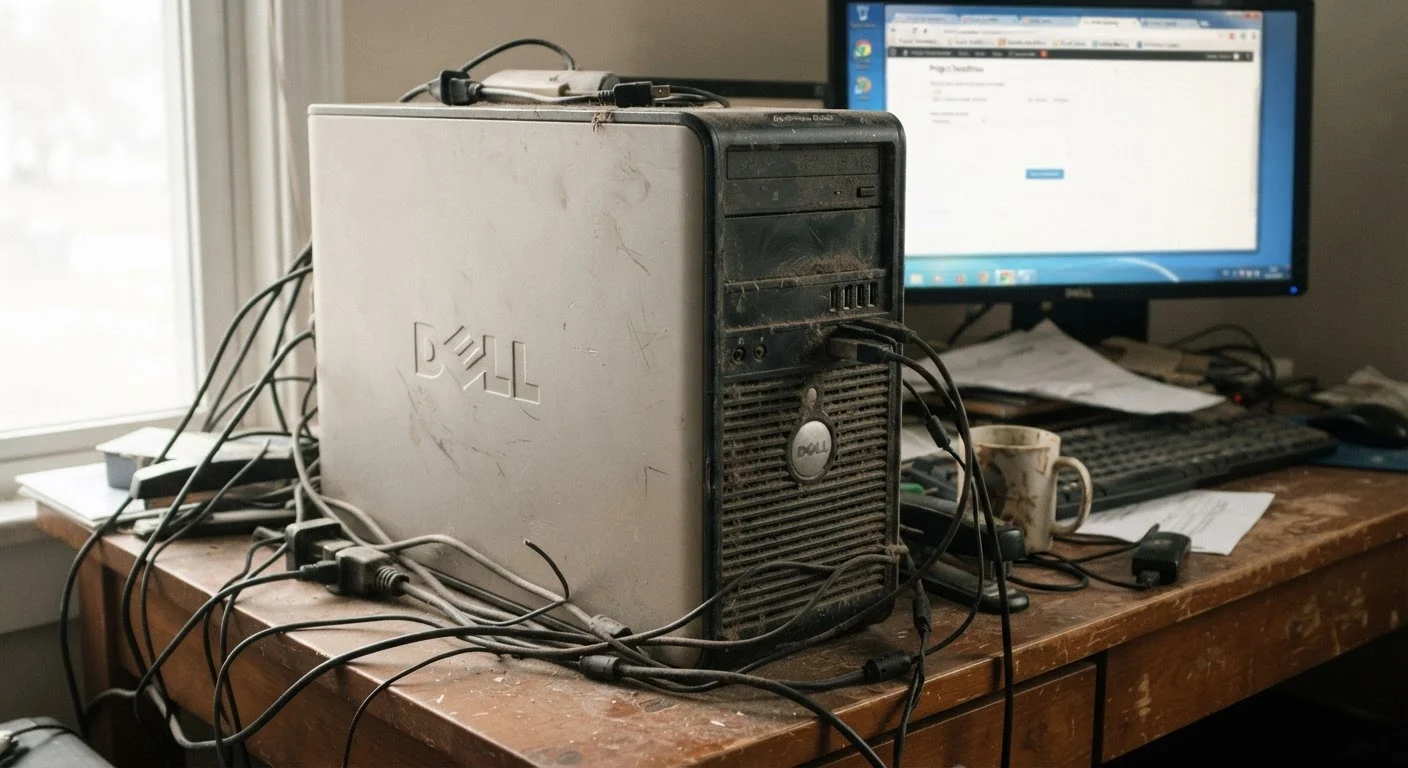
There's a built-in safety mechanism in almost every modern processor: when it gets too hot, it reduces its own speed to avoid damage. This is called thermal throttling. Dust accumulating inside a laptop or desktop over time insulates components, trapping heat that would otherwise be carried away by fans and vents.
A machine running hotter than designed will throttle its CPU more frequently - meaning it intentionally underperforms to protect itself. The result is a computer that feels sluggish during demanding tasks, even though the hardware is technically still functional. This is one reason a thorough cleaning of vents and fans can sometimes produce a genuine speed improvement on older machines.
Thermal Throttling Is a Feature, Not a Flaw
Processors are designed to reduce speed under high heat - this is intentional behavior meant to protect your hardware from permanent damage. If you notice slowdown specifically during demanding tasks on an older machine, heat management may be worth investigating before assuming the processor is failing. Cleaning vents and ensuring adequate airflow is a safe first step; internal hardware cleaning should be approached carefully or left to a qualified technician.
What You Can Actually Do With This Knowledge
Understanding why slowdown happens lets you target the right problem instead of chasing generic advice. If background processes are the culprit, reviewing your startup program list is more useful than running a disk cleaner. If storage is nearly full, freeing space - or understanding what's consuming it - matters more than adjusting visual settings.
For readers who've noticed similar patterns on mobile devices, what fills up phone storage follows the same logic: knowing the specific cause leads to a more effective response than trial-and-error fixes.
No single action restores a computer to its original speed in every case. But diagnosing which layer - software accumulation, resource contention, storage strain, or heat - is actually responsible puts you in a far stronger position to address it meaningfully.
A user installs a new video editing application that automatically adds a background render service to startup. Over time, six similar programs have done the same thing.
A three-year-old laptop's storage drive is 94% full after years of photo downloads, software installations, and browser cache accumulation.
A desktop PC that hasn't been cleaned in four years runs noticeably slower during tasks like gaming or video calls, even though no new software was recently installed.