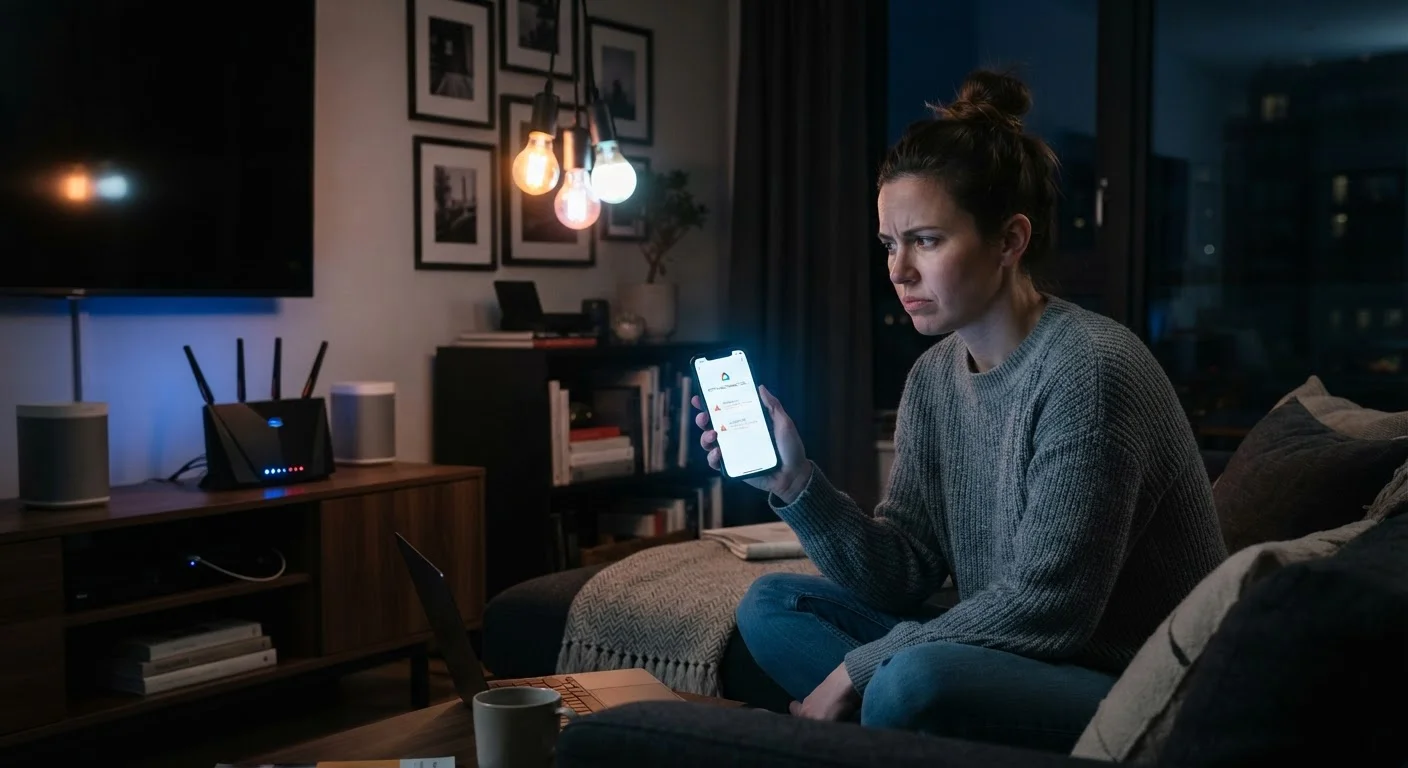
Why Smart Bulbs Lose Their Connection
Smart bulbs are one of the most popular entry points into home automation - and one of the most common sources of frustration. A bulb that randomly stops responding to your app, reverts to full brightness, or drops off your network entirely isn't broken. In most cases, it's reacting to a problem you can fix.
Smart bulbs connect to your home in one of several ways: directly over Wi-Fi, through a dedicated hub using a protocol like Zigbee or Z-Wave, or via Bluetooth. Each has its own failure points. Wi-Fi bulbs are by far the most common and also the most vulnerable to the network issues discussed in this article. For a solid grounding in how Wi-Fi signals behave and why they drop, see our complete Wi-Fi guide.
Understanding the specific mistake causing your dropouts is the fastest path to a reliable fix. Below are the most common errors - and what to do about each one.
Connecting smart bulbs to your router's 5 GHz band instead of 2.4 GHz.
Why it happens: Many routers broadcast a single network name that automatically switches devices between bands. Most smart bulbs only support 2.4 GHz, so when the router assigns them the 5 GHz band, they simply can't maintain a stable connection.
Placing the router too far from the bulbs, or separated by thick walls and interference sources.
Why it happens: It's easy to underestimate how dramatically distance and physical obstacles - concrete walls, appliances, microwaves - degrade Wi-Fi signal strength. Bulbs in far rooms or outdoor fixtures are especially vulnerable.
Overcrowding the router with too many devices on the same network.
Why it happens: Every connected device - phones, TVs, speakers, thermostats - competes for the router's bandwidth and connection slots. Older or budget routers have strict limits on how many devices they can handle simultaneously, and smart bulbs are often the first to get dropped.
Cutting power to bulbs at the wall switch rather than through the app.
Why it happens: Physical wall switches are convenient, but smart bulbs need continuous power to stay connected to the network. Switching the power off at the socket effectively reboots the bulb's internal Wi-Fi chip each time, which can corrupt connection settings over repeated cycles.
Neglecting firmware updates for bulbs and the controlling hub or app.
Why it happens: Updates feel optional, and many users don't realize bulbs have their own internal firmware separate from the app. Outdated firmware can cause compatibility failures, especially after the app or router firmware receives an update.
Skipping a proper factory reset before re-pairing a bulb that has lost its connection.
Why it happens: When a bulb drops off the network, many users try to re-add it without clearing its stored connection data first. The bulb may still be trying to connect to old, incorrect credentials, causing the re-pairing attempt to silently fail.
Getting Your Network Setup Right
Beyond individual mistakes, smart bulbs benefit from a network that's configured with IoT devices in mind. Many modern routers let you create a separate IoT network or VLAN (Virtual Local Area Network) - a dedicated Wi-Fi segment just for smart devices. This reduces interference from high-bandwidth devices like laptops and streaming boxes, and as a bonus it improves security by isolating your bulbs from devices that hold sensitive data. For more on that angle, see practical home network security habits.
Don't Reset Your Router Without a Plan
Factory-resetting your router to solve bulb dropouts will disconnect every device in your home simultaneously. Before doing this, document your current network name, password, and any custom settings. In most cases, repositioning the router or adjusting band settings will solve the problem without a full reset.
It's also worth understanding whether your bulbs depend entirely on a manufacturer's cloud servers to function. If those servers experience downtime - or if the company discontinues support - bulbs can go offline even when your network is perfectly healthy. Learn what local control vs. cloud dependency means in practice before purchasing or troubleshooting. And for a broader diagnostic checklist covering power, updates, and compatibility, this connected device checklist is a useful next step.
2.4 GHz
Band required by most smart bulbs
The vast majority of smart bulbs on the market only support the 2.4 GHz Wi-Fi band, which offers greater range but less speed than the 5 GHz alternative.
~30 ft
Typical range reduction through walls
Wi-Fi signals passing through a single interior wall can lose roughly 30-50% of their effective range, according to general networking guidance from router manufacturers.