Why You Can't Just Turn It On and Start Using It
Picking up a used or refurbished tablet can be a smart move - you get capable hardware without paying full retail price. But a secondhand device carries invisible baggage: leftover accounts, outdated software with known security holes, and potentially apps you never installed. Skipping a proper setup isn't just inconvenient - it's a real privacy and security risk.
This checklist walks you through every step you should take before trusting a used or refurbished tablet with your email, photos, banking apps, or anything personal. It applies to Android tablets, iPads, and Windows-based tablets, with notes where the process differs. For a comparison of how tablets stack up against laptops for everyday use, see how tablets and laptops compare.
Physical Inspection
Account and Ownership Checks
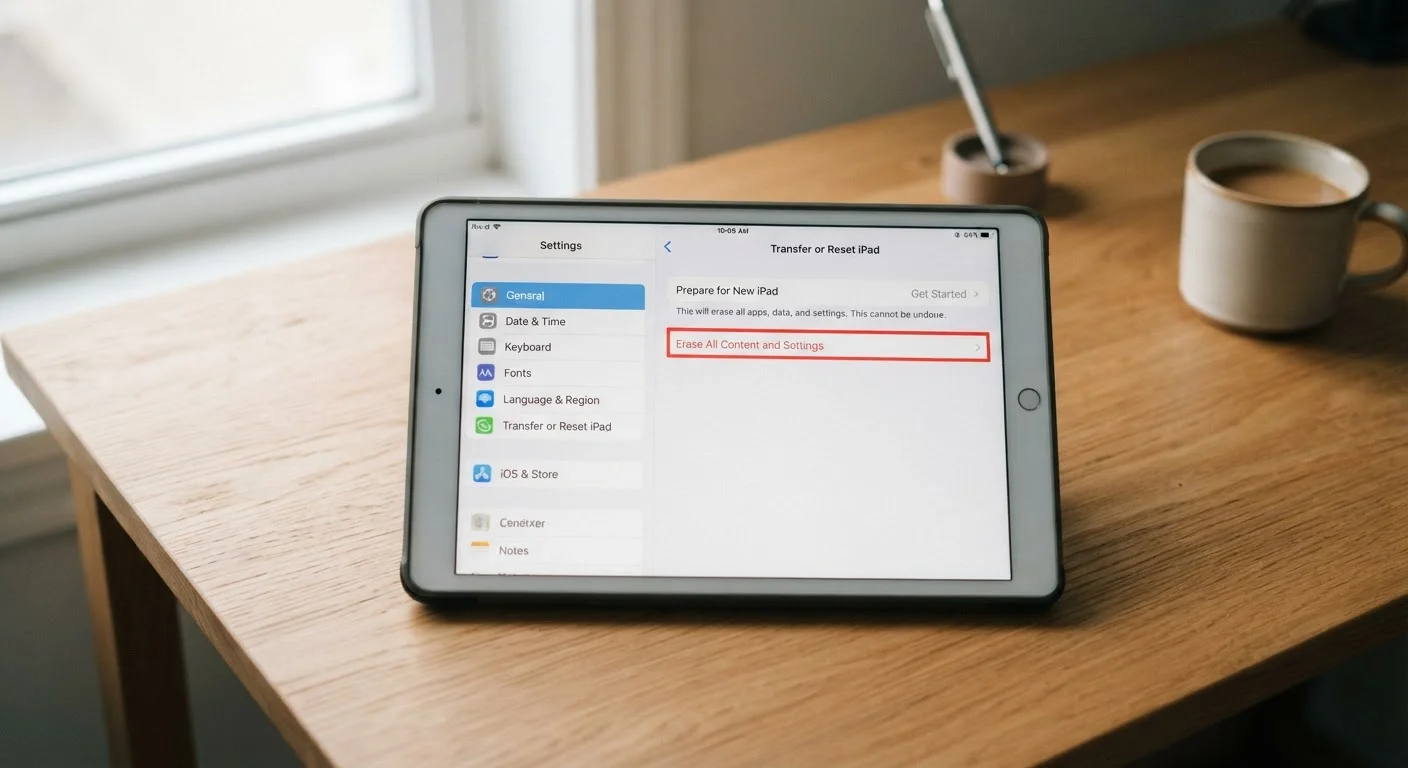
Factory Reset
Software Updates and Security
App and Permission Audit
Tools and Resources You'll Need
You don't need anything exotic to work through this checklist - just a few basics gathered before you start.
Charger and power source
Keep the tablet powered throughout the reset and update process to avoid interruptions.
Wi-Fi connection
Required to download operating system updates and sign into accounts during setup.
Existing email address and password
Needed to create or sign into the App Store or Google Play account during setup.
Authenticator app
Enables two-factor authentication on accounts you add to the device for stronger security.
Once you have these in hand, you're ready to work through the checklist systematically. If you're also setting up a Windows-based tablet or a new PC alongside it, our Windows PC setup checklist covers the computer-specific steps in detail.
Activation Lock Can Make a Device Unusable
Apple's Activation Lock and Android's Factory Reset Protection are designed to prevent theft - but they also apply to legitimate resales. If a device still has the previous owner's account tied to it, you may not be able to complete setup even after a factory reset. Always confirm these protections are cleared before finalizing any purchase of a secondhand tablet.
After the Setup: Staying Secure Long-Term
Getting the tablet ready is a one-time process, but staying secure requires a few ongoing habits. Enable automatic software updates so security patches apply without you having to think about it. Review app permissions periodically - apps you rarely use don't need persistent access to your location or microphone. And be cautious on public Wi-Fi, especially when accessing accounts or financial information.
For deeper guidance on keeping any mobile device locked down, our smartphone security primer covers lock screens, phishing risks, and app permissions in plain language - most of it applies equally to tablets. If you travel with your device, protecting your devices while traveling is worth reading before your next trip.
This article provides general technology guidance for informational purposes. Steps may vary depending on your specific device, operating system version, and seller. Always verify account and security settings directly within your device's official settings menu.