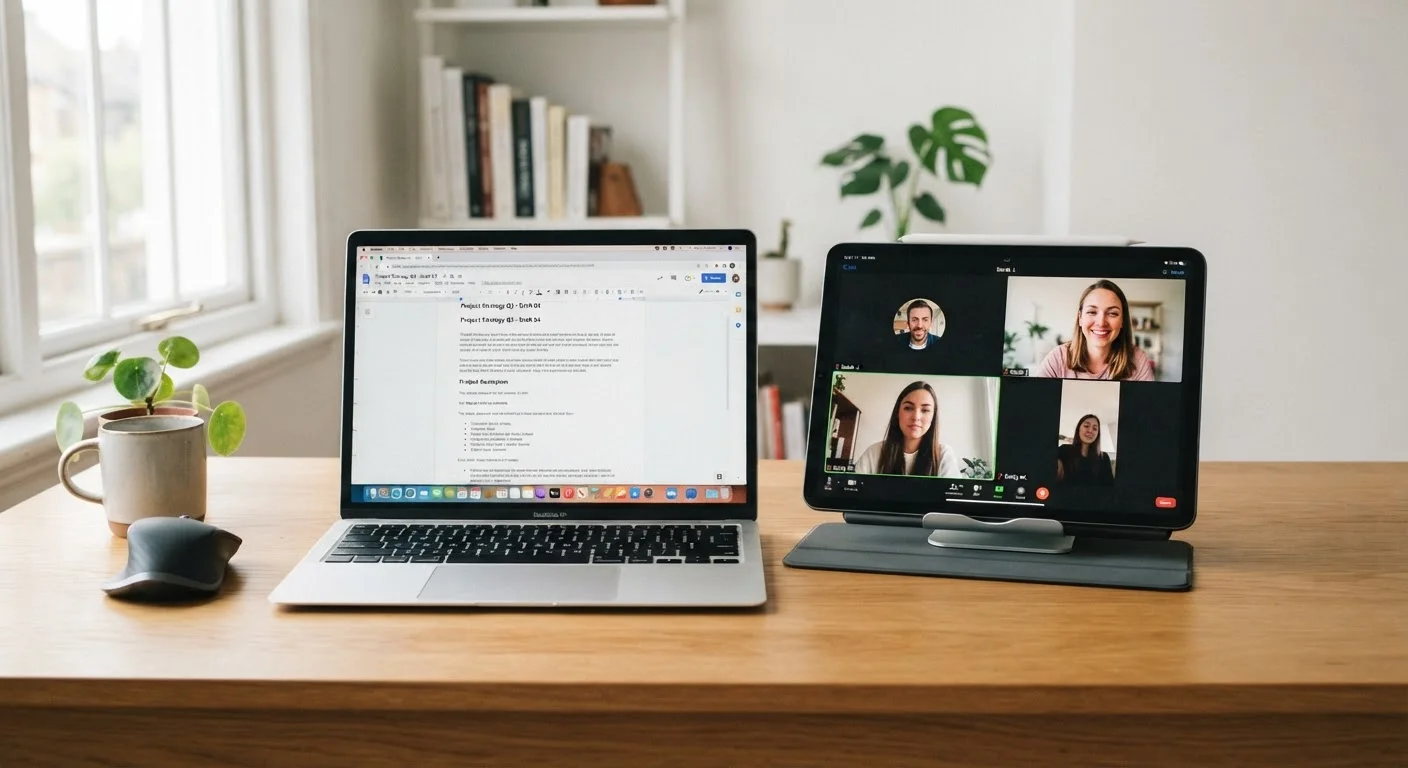
How These Devices Differ at a Fundamental Level
Tablets are touch-first devices built around a large, portable screen. They run mobile operating systems (or tablet-optimized versions) and are designed to be picked up, held, and used on the go with minimal setup. Laptops run full desktop operating systems, include a physical keyboard, and are built around a seated, stationary work session.
That foundational difference shapes nearly every comparison that follows. It's not that one device is smarter or more capable in an absolute sense - it's that their designs prioritize different kinds of use. Understanding that distinction makes it much easier to put each one to work without fighting its nature. For a related look at how mobile operating systems affect the experience on tablets, see how Android and iOS differ in practice.
Tablet Keyboards Narrow - But Don't Close - the Gap
Many tablets now support detachable or Bluetooth keyboards, and some manufacturers produce keyboard cases that make a tablet look and feel closer to a laptop. These accessories meaningfully expand a tablet's productivity potential. That said, the operating system underneath still shapes what the device can and can't do efficiently, regardless of what input method is attached.
Where Tablets Genuinely Have the Edge
Tablets shine in a predictable but important set of scenarios. Their lightweight form factor and long battery life make them the more comfortable choice for extended reading - whether that's e-books, news, or long-form articles. Holding a tablet like a book simply works in a way that propping up a laptop never does.
More comfortable for extended reading and media consumption
A tablet's lightweight build and portrait orientation suit reading for long periods in a way laptops don't naturally support. Battery life typically lasts a full day of moderate use.
Easier to use on the go without a surface
Tablets can be used while standing, riding transit, or holding them in one hand. Laptops require a flat surface and proper positioning to use comfortably.
Touch and stylus input suits annotation and sketching
Marking up documents, signing forms, and light illustration are more intuitive on a touchscreen with a stylus than on a trackpad or mouse.
Faster to pick up and start using
Tablets wake instantly and require minimal setup to get into an app or task, making them well suited for quick, casual sessions throughout the day.
Generally quieter and fanless in most models
Many tablets have no internal fans, making them completely silent during use - an advantage in quiet environments like bedrooms or libraries.
Video calls are another area where tablets tend to feel more natural for casual use. The front-facing camera is usually positioned at eye level when the tablet is held upright, and the touchscreen interface makes joining a call quick without navigating a cursor. Sketching, annotating PDFs, or filling out forms also benefit from touch input and, where supported, stylus use.
If you're evaluating a secondhand tablet to fill this role, preparing a refurbished tablet properly is an important first step before relying on it.
Where Laptops Still Hold a Clear Advantage
The physical keyboard remains the single biggest practical advantage a laptop holds over a tablet for most users. Extended writing - emails, reports, documents, even long messages - is consistently faster and less fatiguing on a hardware keyboard. Tablet keyboards, whether on-screen or Bluetooth accessories, work, but they rarely match the feedback and layout of a laptop keyboard for sustained typing sessions.
Extended typing remains slower and more fatiguing
On-screen keyboards are adequate for short input but tiring for long documents. Even paired Bluetooth keyboards rarely match the ergonomics and feedback of a built-in laptop keyboard.
File management is more app-centric and less flexible
Tablets organize content around apps rather than a unified file system, which can create friction when moving files between applications or working with complex folder structures.
Multitasking with several open windows is limited
While split-screen modes have improved, running multiple full applications simultaneously is still more constrained on tablet operating systems than on a desktop OS.
Software compatibility gaps in specialized tools
Some professional or niche desktop applications have no tablet equivalent, or their tablet versions have reduced functionality that can interrupt established workflows.
File management is another area where laptops feel less constrained. Desktop operating systems present a full file system that makes it easy to organize, move, and access files across applications. Tablet file management has improved significantly, but the mental model is still more app-centric than file-centric, which can be a friction point for more structured work.
Multitasking with multiple open applications and windows is also more fluid on a laptop. Switching between a spreadsheet, a browser with several tabs, and a communication app simultaneously is where a laptop's larger screen and desktop OS earn their keep.
~70%
Tablet use attributed to media consumption
Industry research consistently shows that video streaming, reading, and browsing account for the majority of how tablets are actually used day-to-day.
40+ wpm
Typical speed advantage of physical keyboards
Studies on text input speed generally find hardware keyboards outpace touchscreen typing by a significant margin for most users, particularly in sustained sessions.
The Overlap Zone: Tasks Either Device Handles Well
A significant portion of everyday tasks fall into a middle range where either device works reasonably well. Streaming video, casual web browsing, checking social media, and video calling are all activities that tablets and laptops handle without meaningful compromise on either side. In these cases, the choice often comes down to whichever device is already in your hand.
Light photo editing, note-taking, and basic document review also sit in this overlap. If the work doesn't involve heavy typing or complex file handling, both devices can get it done. The computers and software hub covers many of these tasks in more practical depth if you want guidance on specific workflows.
Using Both Together: A More Practical Frame
For many households, the most useful question isn't which device is better overall - it's how to divide tasks between both so each is doing what it does well. A common and effective split is using a tablet for consumption and communication (reading, video calls, streaming, quick browsing) while keeping the laptop for creation and structured work (writing, spreadsheets, file management, longer research sessions).
If you're interested in how similar trade-off thinking applies to other home tech decisions, the comparison of smart speakers vs. smart displays covers a related kind of device overlap in a different context.
The goal isn't to justify owning two devices - it's to stop using either one in ways that create unnecessary friction. Reaching for the right tool for each task makes both devices feel more capable, not less.