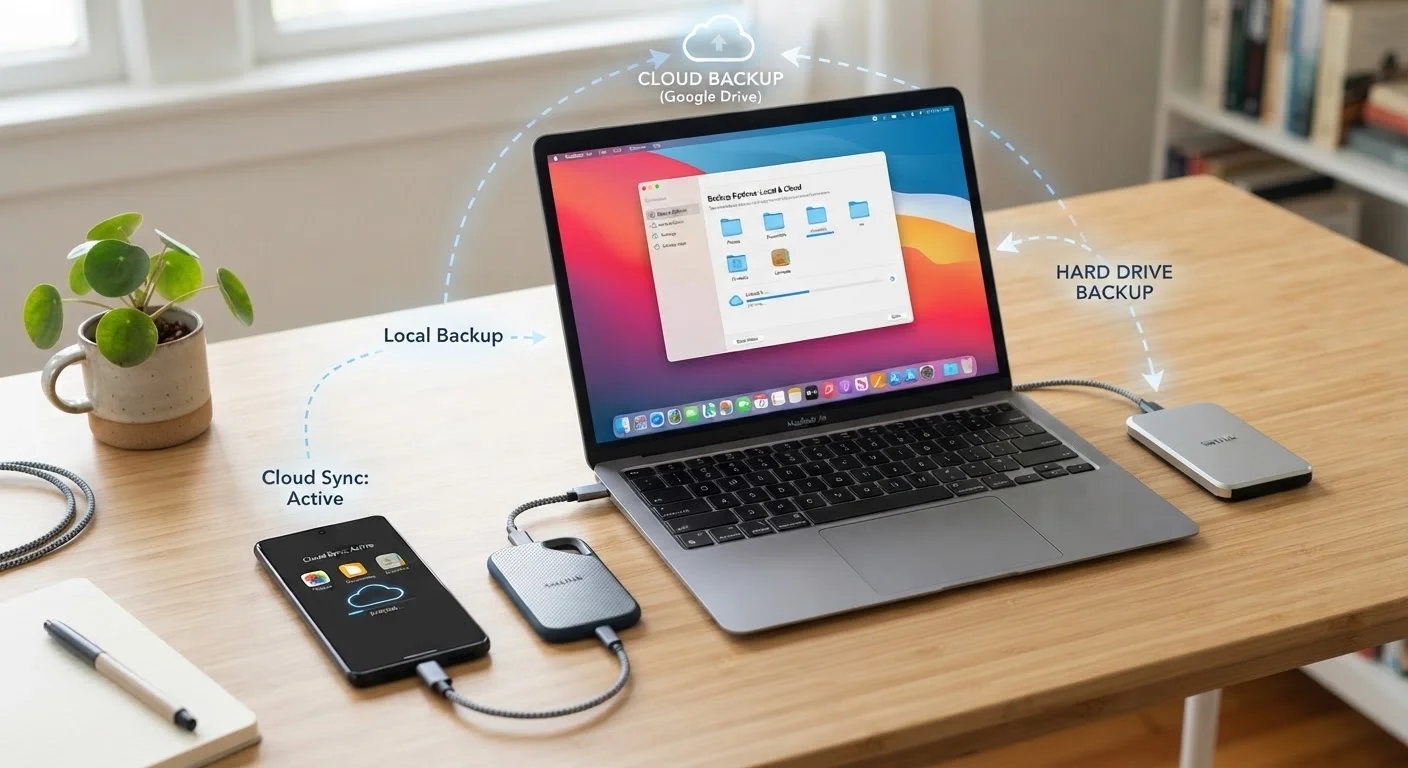
What Each Backup Method Actually Does
When you back up your phone, you're creating a copy of your data - photos, contacts, messages, app settings - so you can restore it if something goes wrong. The two main approaches differ fundamentally in where that copy lives.
Cloud backup sends your data over the internet to remote servers managed by a third party. On iPhones, that's iCloud. On Android devices, Google's ecosystem handles backups automatically, with Google Photos covering your camera roll separately. The process typically runs in the background while your phone charges and connects to Wi-Fi.
Local backup copies your data directly to a computer or external drive you own. On iPhones, iTunes (on Windows) or Finder (on Mac) performs a full device backup when you plug in via USB. Android users can transfer files manually or use third-party software to create local copies.
For a broader look at how cloud dependency affects everyday devices, see what local control vs. cloud dependence means in practice.
Comparing the Key Trade-Offs
Choosing between cloud and local backup comes down to four practical factors: convenience, cost, privacy, and recovery reliability. No single method wins on every dimension.
| Cloud Backup | Local Backup | |
|---|---|---|
| Setup effort | Minimal - mostly automatic | Manual - requires cable and software |
| Ongoing cost | Free tier limited; subscription for more | One-time hardware cost only |
| Privacy | Data stored on third-party servers | Data stays in your possession |
| Accessibility | Available anywhere with internet | Requires access to your computer |
| Recovery speed | Slower - depends on internet speed | Faster - direct cable transfer |
| Off-site protection | Yes - survives local disasters | No - vulnerable to fire, theft |
| Works without internet | No | Yes |
Cloud backup's biggest strength is automation - it happens without you remembering to do anything. Local backup's biggest strength is ownership - once it's on your drive, no subscription lapse or server outage can take it away.
Privacy and Security Considerations
Storing data on cloud servers means a third party holds copies of your photos, messages, and contacts. Reputable providers encrypt data both in transit and at rest, but encryption keys are typically held by the provider, meaning the company could technically access your files under certain legal circumstances.
Local backups keep data physically in your home. However, local storage comes with its own risks: a stolen laptop, a house fire, or a failed hard drive could destroy your backup along with your phone. Encrypting local backups - an option in both iTunes and Finder - adds an important layer of protection against unauthorized access if the device is lost.
Encrypt Your Local Backup
When using iTunes or Finder to back up an iPhone locally, always enable the encrypted backup option. This is the only way to include saved passwords, Health app data, and Wi-Fi credentials in your backup. Without encryption, those items are excluded from the local copy and won't be restored if you ever need them.
If you use the same computer for local backups and want to understand broader file safety habits, a practical home backup strategy covers how to protect all your data, not just your phone's.
Cost and Storage Limits
Free cloud tiers are genuinely limited. Apple provides 5 GB of iCloud storage at no charge - a single full iPhone backup can exhaust that quickly, especially if you store photos in the cloud too. Google offers 15 GB shared across Gmail, Drive, and photos before requiring a paid plan.
Local backup has a different cost structure: you pay once for a hard drive or use a computer you already own, with no recurring fees. That said, drives can fail, and storing your only local backup on a single drive without any offsite copy is still a vulnerability.
For a side-by-side look at ongoing cloud costs versus one-time hardware investments, cloud storage vs. an external hard drive breaks down the long-term math.
Recovery: When Things Actually Go Wrong
The real test of any backup is how well it performs during a restore. Cloud recovery is seamless when switching to a new phone - sign in to your account and your apps, photos, and settings begin downloading automatically. The catch: a full restore can take hours depending on your internet speed and the size of your backup.
Local restores are typically faster once you're connected via cable, and they work without any internet access at all. This matters if you're in a location with poor connectivity or if your cloud account has been compromised. A full encrypted local backup can restore your phone to an identical state, including passwords and health data, in a fraction of the time a cloud restore might take.
Travelers in particular should think through recovery scenarios before a trip - see keeping your devices and data safe while traveling for guidance on protecting data on the road.
The Case for Using Both
Security professionals generally follow a 3-2-1 rule: keep three copies of important data, on two different types of media, with one copy stored off-site. For phone users, that translates practically to: one cloud backup (off-site by nature) plus one local backup on a computer or drive at home.
This combination protects against scenarios that either method alone cannot handle. Your cloud account being locked out or a server outage won't affect your local copy. A house fire won't destroy the cloud copy. The two methods complement each other rather than compete.
Your choice of phone platform also shapes which tools are available to you - how Android and iOS handle backups differently is worth understanding before settling on a workflow.
Regardless of which approach you choose, the most important habit is simply running backups consistently - an outdated backup from six months ago may leave you missing photos, messages, and contacts you can't get back.