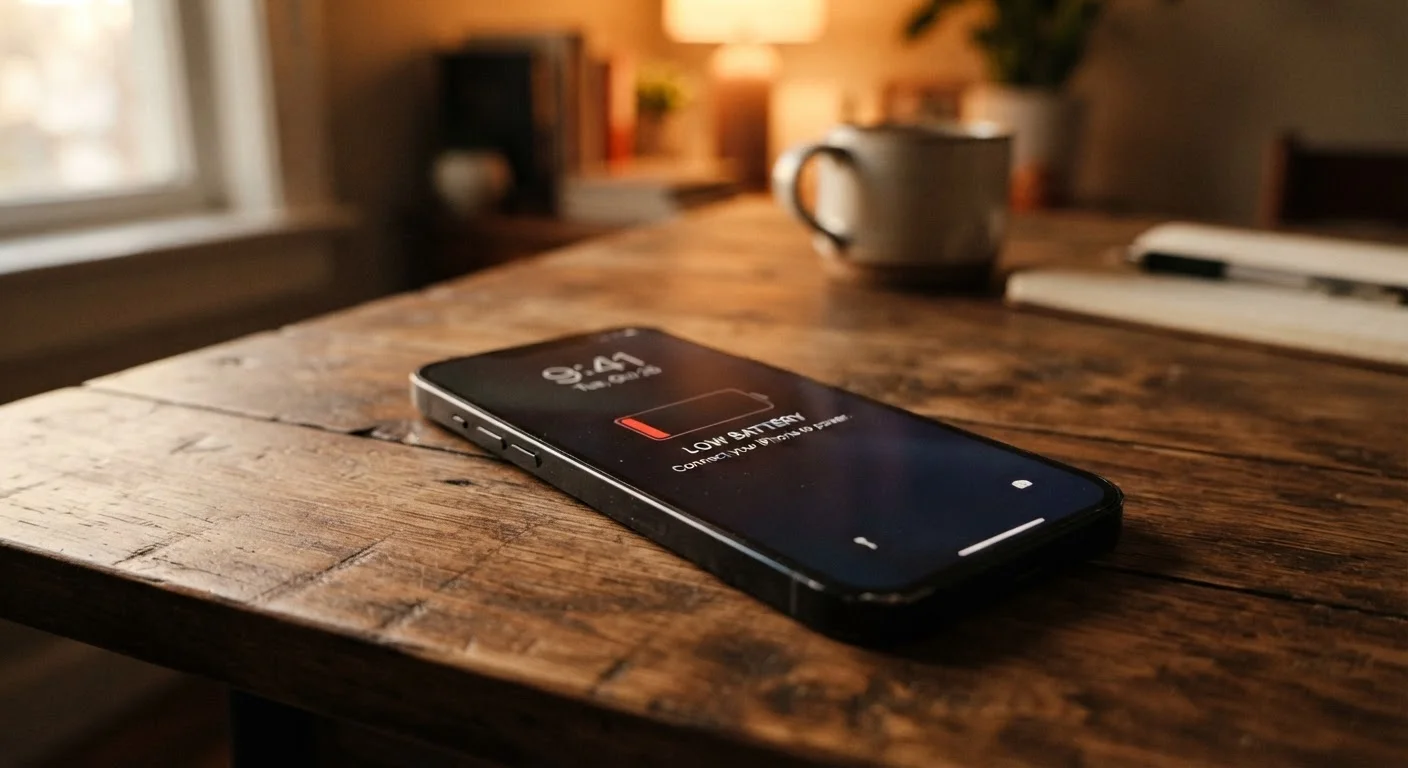
The Screen: Your Biggest Power Consumer
The display is almost always the single largest draw on your phone's battery. Every pixel lit up - especially at high brightness - takes energy. Most phones allow automatic brightness adjustment using a light sensor, and keeping this feature enabled is one of the most effective passive steps you can take.
Screen-on time matters more than most people realize. Streaming a video for an hour at full brightness will drain far more power than a dozen short glances at your messages. If your phone dies by late afternoon, check how much screen-on time you're accumulating in your battery usage report - it's usually eye-opening.
Phones with OLED or AMOLED displays have an extra tool available: dark mode. Because individual pixels switch off to produce true black, dark mode can reduce display power consumption noticeably on those screen types.
Set a Screen Timeout That Works for You
A screen that stays on for two or three minutes when you set your phone down wastes a surprising amount of charge over a full day. Setting your screen timeout to 30 or 60 seconds is a simple adjustment that adds up significantly. Most people adapt to a shorter timeout within a day and barely notice it afterward.
Background Activity: The Hidden Power Drain
Apps don't stop working the moment you leave them. Email clients check for new messages, social media apps refresh feeds, navigation apps keep a GPS lock, and fitness apps log steps - all without you ever opening them. This is called background app activity, and it's a significant, consistent drain on battery life.
Your phone's battery usage screen (found in Settings on both Android and iOS) shows a breakdown of which apps consumed the most power over the past day or longer. If a rarely used app is near the top of that list, it's worth reviewing what permissions - particularly location and background refresh - you've granted it.
Location services deserve special attention. Apps that track your position continuously, even when not in use, draw both GPS hardware and wireless radio power. Switching non-essential apps from "Always" to "While Using" location access can produce a noticeable improvement. For more on how apps and system files interact with your phone's resources, see our guide to what's actually consuming phone storage.
~80%
Typical battery capacity retained after 500 charge cycles
Lithium-ion battery manufacturers generally rate cells to retain around 80% of original capacity after 300-500 full charge cycles under standard conditions.
Top 3
Apps often responsible for majority of battery drain
Battery usage reports on both Android and iOS typically show that a small number of apps - often just two or three - account for the majority of non-display power consumption.
Up to 30%
Potential battery savings from display adjustments alone
Research on smartphone power consumption consistently identifies the display as the component with the largest single impact on battery life, with brightness reductions offering substantial savings.
Network Signals and Connectivity
Your phone's radio is one of its most power-hungry components - and it works hardest when signal is weak. When cellular coverage is poor, your phone continuously boosts its transmission power trying to maintain a connection, burning through battery in the process. The same applies to Wi-Fi: a weak or unstable connection causes constant reconnection attempts.
Bluetooth, when left on with multiple paired devices, also contributes modest but continuous drain. This is rarely the primary cause of fast drain, but it adds up alongside other factors.
Push notifications from many apps keep the network radio active in brief, frequent bursts. Auditing which apps can send notifications - and disabling it for apps that don't truly need it - reduces both these radio wake-ups and background sync activity at the same time.
Interestingly, the same logic applies to other wireless devices in your home. Our article on electronics that drain power even when idle explores how standby wireless activity affects energy consumption more broadly.
Battery Age and Health Degradation
Even if you use your phone identically every day, it will feel like it's draining faster over time. That's not your imagination - it's chemistry. Lithium-ion batteries lose a small amount of maximum capacity with each charge cycle. After a few hundred cycles, the battery holds measurably less charge than it did when new, so the same usage drains a larger percentage of what remains.
Both major mobile platforms include a battery health indicator in settings. When capacity has degraded substantially, no amount of tweaking settings will fully compensate - the underlying storage capacity is simply smaller. At that stage, a battery replacement is the most direct solution, and it's typically far less expensive than a new phone.
How you charge your phone also affects how quickly this degradation happens. Consistently charging to 100% and leaving it plugged in, or regularly draining to near zero, accelerates the process. Our companion article on charging habits that shorten battery lifespan explains the research behind these patterns in detail.
“Battery capacity degrades with every charge cycle, and the rate of degradation is directly influenced by how deeply the battery is cycled and the temperatures it experiences. Users who keep their phones between 20% and 80% charge and avoid heat exposure will generally see slower degradation over time.”
— Battery technology researchers, Electrochemical engineering and consumer battery longevity research community
Practical Steps That Actually Make a Difference
Once you understand the causes, the remedies are straightforward. Here's where to focus your attention:
- Enable adaptive brightness rather than pinning your screen to maximum.
- Review battery usage by app and restrict background activity for apps you rarely open actively.
- Audit location permissions - very few apps genuinely need constant location access.
- Reduce push notification frequency for apps where real-time alerts aren't essential.
- Check battery health in settings; if it's significantly degraded, explore a battery replacement.
- Avoid leaving your phone in hot environments, which accelerates permanent capacity loss.
None of these steps require buying anything new or making dramatic changes to how you use your phone. Most users who address the two or three biggest drains in their specific usage pattern see meaningful improvements within a day or two.
For a broader look at keeping your device performing well over time, our smartphone longevity guide covers both software and physical care practices that make a real difference.
Myths About Battery Saving
Closing all your open apps is one of the most persistent battery myths - modern operating systems handle paused apps efficiently, and force-closing them can actually increase drain when they reload. For a deeper look at what phone performance advice is real versus repeated misconception, see our guide to common smartphone performance myths.